

Build the Room Around the Projection system
Until now, Beam Suite focused only on projectors and screens, but this update changes that. You can now add objects directly to your projection design. This includes importing custom OBJ meshes to use anywhere, including as projectors and screens.
Objects: build real-world context into your design
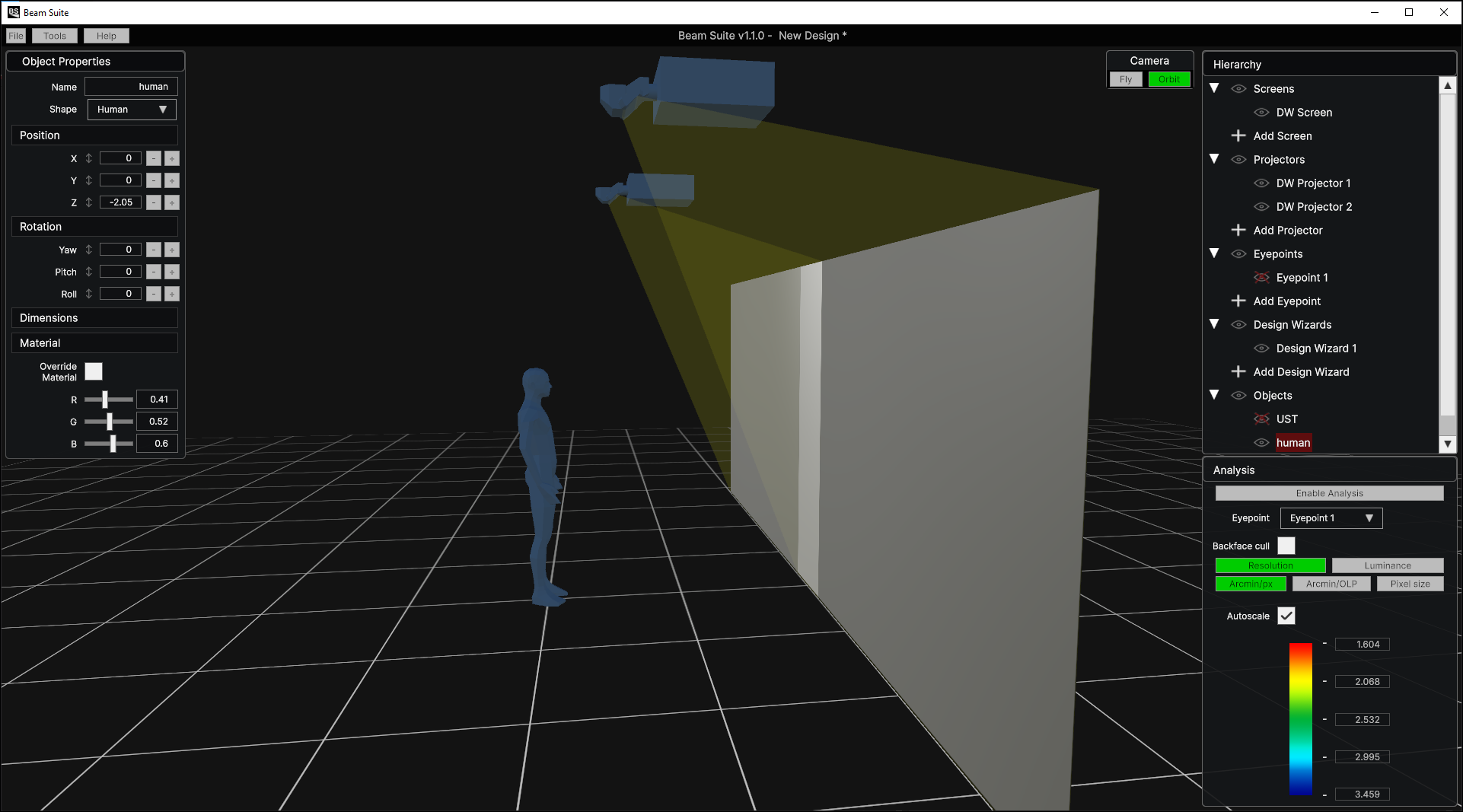
A projection system rarely exists in a vacuum. There’s a room around it, people standing in it, and maybe furniture or structural elements that affect where a projector can actually go. Beam Suite now lets you add scene objects directly into your design to represent all of that context.
Out of the box, Beam Suite ships with four object presets so you can start quickly:
- Box — stand-in for pillars, plinths, or AV rack furniture
- Cylinder — quick geometry for columns or curved obstructions
- Room — block out a full room shell to check clearances
- Human — sanity-check eye height, line of sight, and viewer position
These presets add more than just looks. Having 3D objects in your projection design helps you see if the design will work in the actual space. If a preset doesn’t fit, Beam Suite lets you import custom 3D models (OBJ format) so you can bring geometry into Beam Suite and design around the real space.
OBJ import for Projectors and Screens: model your exact hardware and geometry
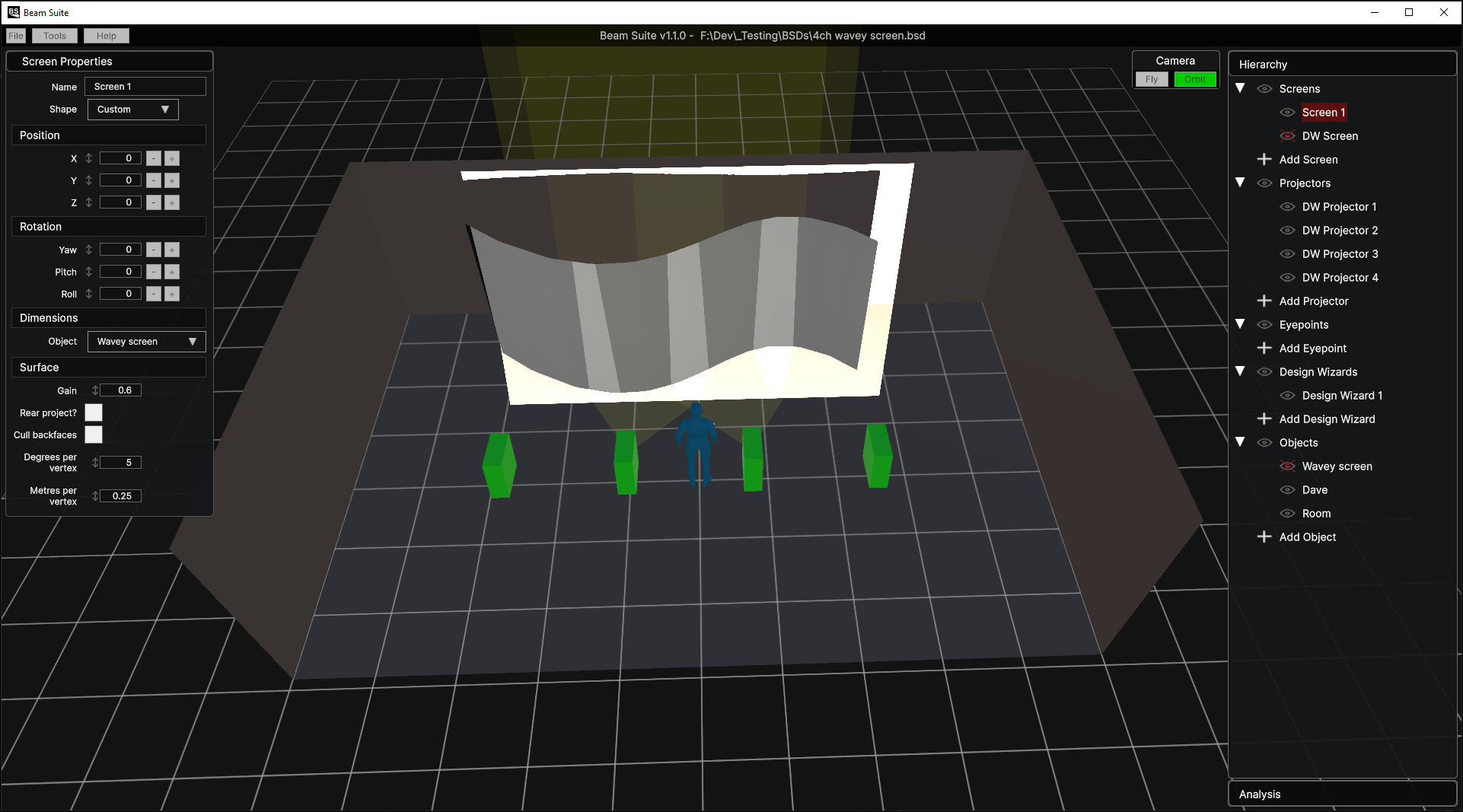
The second half of this release is OBJ file import, and it goes further than scene decoration. Custom meshes imported via OBJ can be assigned as projectors or screens in your Beam Suite design, not just added as background objects.
That matters if you’re working with:
- Non-standard screen geometry
- An unusual or custom projector housing or lens
- A venue-specific projection surface, that doesn’t map cleanly to built-in primitives (sphere, cylinder, dome, flat)
Model the geometry once in your CAD or 3D tool of choice, export it as an OBJ, import it into Beam Suite, and assign it the role it actually plays in your system. Your projection simulation and analysis now reflect the geometry you’re really installing, not an approximation of it.
Why Objects and 3D mesh import matter for projection engineers
Together, Objects and custom OBJ import push Beam Suite a step closer to replicating your real installation space— the room, the obstacles, and the projection hardware as it’s actually shaped, not simplified stand-ins. Whether you’re validating a multi-projector design against a physical space, checking clearance for a VR CAVE, or working with a projector or screen that doesn’t come off a shelf, you now have the tools in Beam Suite to model it accurately.
Download Beam Suite today and give the new Objects a try on your next projection mapping or immersive display project, and let us know what you build.
– Simon
-
Beam Suite 1.1.0 now released! New Objects + OBJ import
Beam Suite has updated to allow users to integrate 3D objects into projection designs, including…
-

Beam Suite 1.02 is now released! Better quality of life before upcoming features
Some polish before the next new features A round of polish and reliability fixes aimed…

Leave a Reply